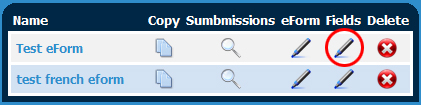
| 1. | On the main eForms page click the edit Fields icon |
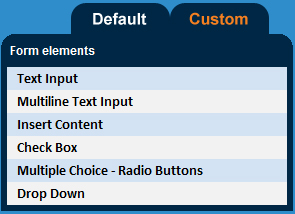
| 2. | On the following page, add items to your eForm by clicking on the type of form field you would like from the table to the left. We have pre made form fields such as a province drop down, and address block under the 'Default' tab, as well as customizable form fields such as multiple choice radio buttons under the 'Custom' tab. |
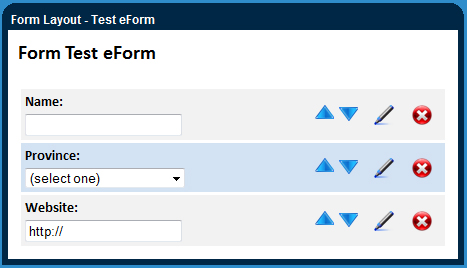
| 3. | The form fields you selected are listed in the table to the right. You can order, delete or edit any of these field using the icons on each row in the table below: |
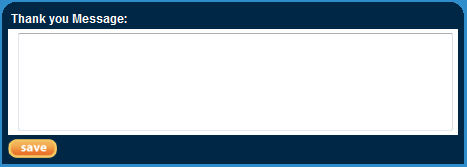
| 4. | Type a custom thank you message in the bottom table. This will be displayed after the user submits the eForm. |
|